READ-ONLY TRAINING REFERENCE
Gift Card Process
Read and discuss the work. No sign-offs, completion records or submissions are available here.
Use the Verifone T650 Heartland terminal to check or change card value. Use the POS to record the customer's sale and payment. Follow the operation that matches the request.
Customer Pays with a Gift Card
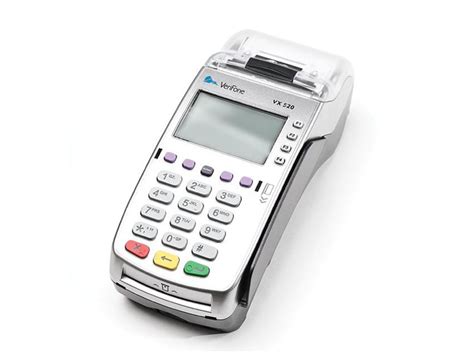
Complete all three parts to prevent a register shortage. Check the balance and complete the redemption on the gift card terminal before settling the bill in the POS.
1. Check the available balance
- Tap BALANCE INQUIRY.
- Swipe the gift card, or tap [#] to enter the card number manually, then tap the check mark [✔].
- Read the displayed balance. The terminal displays an approval message and prints merchant and customer receipts.
2. Redeem the amount on the gift card terminal
- Tap REDEEM.
- Enter the amount to redeem, then tap [✔]. Do not exceed the available balance or the amount due.
- Swipe the card, or tap [#] to enter the card number manually, then tap [✔].
- Confirm the approval message. The terminal prints merchant and customer receipts. Keep the merchant redemption receipt for the SCR and give the customer their copy.
If redemption is not approved, do not record a gift card payment in the POS. Ask the manager for help.
3. Settle the bill in the POS
Apply the approved redemption amount to the POS bill using the Gift Card payment option. If a balance remains, collect it by cash or credit card and record that payment separately.
Customer Buys a Gift Card
For a new card, follow the PURCHASE steps below. To add money to a previously used card, including one with a $0 balance, follow Reload an Existing Gift Card.
Complete both parts. Finish the gift card purchase in the POS before loading the card on the gift card terminal.
1. Ring the sale and collect payment in the POS
Ring the gift card under Supplemental / Retail for the amount the customer is purchasing. Collect and record the customer's cash or credit card payment in the POS.
2. Activate and load the gift card
- On the gift card terminal, tap PURCHASE.
- Tap the amount, or tap CUSTOM and enter the amount paid for in the POS.
- Swipe the gift card, or tap [#] to enter the card number manually, then tap [✔].
- Confirm the approval message. The terminal prints merchant and customer receipts. Keep the merchant receipt for the SCR and give the customer their receipt and loaded card.
For a previously used card, including a zero-balance card, use RELOAD. If PURCHASE displays “Activate Not Allowed,” follow the reload recovery instructions below without charging again.
If loading is still not approved, ask the manager for help before giving the card to the customer as activated.
Customer buys multiple cards with the same value
Use MULTI-PURCHASE to load the same amount onto up to 10 cards. First ring and collect payment for all cards in the POS.
- Tap MULTI-PURCHASE.
- Enter the number of cards (10 maximum), then tap [✔].
- Enter the amount to load onto each card, then tap [✔].
- Continue with the PURCHASE prompts above for the cards. Confirm approvals and keep the receipts.
Reload an Existing Gift Card
Use RELOAD when a customer adds money to a previously used gift card. This applies whether the card still has money on it or has a $0 balance.
Load only the additional amount the customer is buying. For example, if a card has $5 remaining and the customer buys $20 more, enter $20 as the reload amount, not $25.
1. Ring the added value and collect payment in the POS
Ring the additional gift card value under Supplemental / Retail. Collect and record the customer's cash or credit card payment in the POS. If the sale and payment are already recorded, do not ring the sale or collect payment again.
2. Reload the card on the gift card terminal
- Tap RELOAD.
- Enter the additional amount paid for in the POS, then tap the check mark [✔].
- Swipe the existing gift card, or tap [#] to enter the card number manually, then tap [✔].
- Confirm the approval message. Keep the merchant receipt for the SCR and give the customer their receipt and reloaded card.
If PURCHASE displays “Activate Not Allowed”
Attempting PURCHASE on a previously used $0-balance card produces Activate Not Allowed. Use RELOAD instead and follow step 2 above for the amount already paid for. Do not charge the customer a second time.
If the reload is not approved, ask the manager for help before giving the card to the customer as loaded.
Help / Instructions
Use REDEEM for a customer paying a bill. ADJUST / SUBTRACT VALUE is a separate value adjustment function. Ask the manager before using adjustments, transfers, or voids.
Reprint a receipt
- Tap the menu icon (≡), then REPRINT.
- Tap LAST for the most recent transaction, or LIST to find a different transaction by number or in the transaction list.
- View or select the transaction, then tap MERCHANT COPY or CUSTOMER COPY.